How to Learn Excel for Beginners: A Step-by-Step Guide
How to Learn Excel for Beginners: A Step-by-Step Guide
Learning how to learn Excel for beginners is mostly a question of order: what to learn first, what to practise, and what to ignore until later. Excel looks intimidating when you open it for the first time — a blank grid, a ribbon full of buttons you have never used, and formulas that look like a foreign language. But most of what makes Excel useful at work comes from a surprisingly small set of skills: entering and cleaning data, doing basic calculations, sorting and filtering, using a handful of formulas, and making a simple chart. Learn those well, practise them on real examples, and you will be more capable than most people who have used Excel for years without ever being taught it properly.
This guide is a practical learning path for a complete beginner. It covers how to set up, what to learn in what order, a four-week practice plan you can follow in about thirty minutes a day, the free resources that are actually worth your time, and the mistakes that slow beginners down. It is written for a worldwide audience in simple, clear English, and it focuses on skills that work in any modern version of Excel, including Microsoft 365 and the free web version. For a realistic sense of the time involved, see our guide on how long does it take to learn excel.
Table of Contents
Quick Answer
To learn Excel for beginners, start with the basics — entering data, formatting cells, and simple arithmetic — then learn sorting, filtering, and the essential formulas SUM, AVERAGE, COUNT, IF, and VLOOKUP or XLOOKUP. Practise for thirty minutes a day on real examples, such as a personal budget or a small sales list, rather than just watching videos. After about four weeks of steady practice you should be able to build a clean spreadsheet, calculate totals, find information quickly, and make a simple chart. The key is to practise by doing: every new skill should be tried on your own data the same day you learn it. That is the simplest answer to how to learn excel for beginners.

What Excel Is and Why It Is Worth Learning
Before you start learning, it helps to understand what Excel is actually for, because that shapes everything you practise.
A Spreadsheet, Not a Word Processor
Excel is a spreadsheet program: a grid of rows and columns where you store data and do calculations with it. Each box in the grid is called a cell, and cells can hold text, numbers, or dates. The power of Excel is that cells can contain formulas — instructions that calculate a result from other cells — so when you change a number, every result that depends on it updates automatically. That is the idea the whole program is built around, and once it clicks, the rest makes sense.
Where Excel Is Used at Work
Excel is used almost everywhere: finance teams use it for budgets and reports, sales teams use it for tracking customers and orders, human resources teams use it for staff lists and leave records, teachers use it for grades, and small business owners use it for stock, invoices, and expenses. You do not need to work in finance to benefit. If your job involves lists, numbers, dates, or repeated calculations, Excel can save you hours. That is why it appears in so many job adverts, and why learning it is one of the highest-return skills a beginner can pick up.
Excel, Google Sheets, and Alternatives
Microsoft Excel is the standard most employers expect, but Google Sheets works in a similar way and is free with a Google account. Most of what you learn in Excel transfers directly to Sheets, because the ideas — cells, formulas, sorting, charts — are the same, and many formula names are identical. Learn in Excel if you have access to it, because that is what employers ask for. If you do not, start in Google Sheets and move to Excel later; the learning will not be wasted. The free web version of Excel is another option if you have a Microsoft account.
What “Good at Excel” Really Means
Being good at Excel does not mean knowing every button and every formula. It means you can take a messy pile of information, organise it into a clean table, answer questions about it with formulas, and present the results clearly. Employers value that practical ability far more than a long list of functions you once memorised. Keep that in mind as you learn: the goal is to solve real problems, not to collect features.
Before You Start: Setting Up
A little preparation makes the first week much smoother.
Get Access to Excel
If you have Microsoft 365 through work or school, you already have Excel. If not, you can use the free web version of Excel with a Microsoft account, which covers everything a beginner needs. You can also use a trial version or a one-time purchase, but do not spend money before you know you will stick with it — the free web version is enough to learn all the basics in this guide. Make sure you can open Excel easily every day, because friction is the enemy of a daily habit.
Learn the Layout
Open a blank workbook and spend ten minutes looking around. The grid is made of columns, labelled with letters, and rows, labelled with numbers. A workbook can hold several sheets, shown as tabs at the bottom. The ribbon at the top holds the tools, grouped into tabs such as Home, Insert, and Formulas. The formula bar, above the grid, shows what is in the cell you have selected. The name box, to the left of the formula bar, shows the address of the selected cell, such as B4. You do not need to memorise any of this yet — just know where things are, and the details will come with practice.
Set a Realistic Study Habit
Thirty minutes a day, five days a week, beats three hours once a week. Short, regular sessions build skill far better than occasional long ones, because your brain consolidates learning between sessions. Pick a regular time — before work, at lunch, or in the evening — and protect it. For general advice on building a study habit that lasts, see our guide on how to study effectively. The rest of this guide assumes about thirty minutes a day, but the plan works at any pace: what matters is regularity, not speed.
Choose Your Practice Data
Learning Excel with made-up numbers feels abstract and boring. Learning with data you care about feels useful and sticks. Before you start, pick one or two real examples to practise on: your monthly spending, a list of books you have read, a small inventory for a hobby, or a list of job applications. You will use this data again and again as you learn new skills, and by the end you will have a genuinely useful spreadsheet, not just a set of exercises.
Stage 1: The Absolute Basics (Days 1–4)
The first stage is about getting comfortable. Nothing here is hard, but it is the foundation for everything else, so do not skip it.
Entering Data
Click a cell and type. Press Enter to move down, Tab to move right. That is most of what you need to know at first. Practise entering a simple table: a list of items in the first column, numbers in the second, dates in the third. Try entering a date in different ways and see how Excel recognises it. Try entering a number with a currency symbol. Notice that Excel aligns text to the left and numbers to the right — that alignment is a useful clue about what Excel thinks is in a cell.
Selecting, Copying, and Moving
Learn to select a cell, a range of cells, a whole row, and a whole column. Practise copying and pasting, and learn the difference between copying a value and copying a formula — when you copy a formula, Excel adjusts its cell references to the new position, which is usually what you want. Learn to insert and delete rows and columns, and to undo with Ctrl+Z. These small operations are the ones you will use hundreds of times, so getting them fluent early saves a lot of time later.
Formatting Cells
Formatting is how you make a spreadsheet readable: bold headings, larger text, colours, borders, and number formats. The most important number formats for a beginner are currency, percentage, and date. Practise formatting a simple table so that the headings stand out, the money shows as money, and the percentages show as percentages. A clean, readable spreadsheet is not vanity — it is what makes your work usable by other people, including your future employer.
Saving and Organising Your Work
Save your workbook with a clear name, and save often with Ctrl+S. If you use the web version, your work saves automatically. Keep your practice files in one folder so you can find them again. Start a simple habit: every practice file gets a name that says what it is, such as “monthly-budget-practice.xlsx”, and every sheet inside it gets a clear name too, rather than “Sheet1”. These small habits matter at work, where other people need to understand your files.
Your First Calculation
Click an empty cell, type an equals sign, and then a simple calculation such as =5+3, and press Enter. You have written your first formula. Now try adding two cells together: type =A2+B2, where A2 and B2 hold numbers, and watch the result change when you change one of the numbers. That automatic updating is the heart of Excel, and everything you learn from here is a variation on that idea.
Stage 2: Formulas Every Beginner Must Know (Days 5–10)
Formulas are where Excel becomes powerful. You do not need many of them. The following six cover most everyday work, and they are worth learning properly. Mastering these formulas is a key part of how to learn excel for beginners.
SUM, AVERAGE, COUNT, MIN, and MAX
These five simple functions do what their names suggest. SUM adds a range of numbers. AVERAGE finds their average. COUNT counts how many cells hold numbers. MIN finds the smallest value and MAX finds the largest. They all work the same way: you type the function name, an opening bracket, the range of cells, and a closing bracket, such as =SUM(B2:B10). Practise these on your own data — total your spending, average your monthly costs, count your entries — until typing them feels natural. Together they answer a surprising number of everyday questions.
IF: Making Decisions in a Formula
IF lets a formula make a decision. It has three parts: a test, a value if the test is true, and a value if it is false. For example, =IF(B2>100,”Over budget”,”Within budget”) checks whether the value in B2 is more than 100 and writes one message or the other. This is the formula that turns a spreadsheet from a calculator into a tool that flags problems for you. Practise it on your own data: flag spending over a limit, mark tasks as complete or overdue, or label results as pass or fail. Once IF makes sense, many other formulas become easier to learn.
VLOOKUP and XLOOKUP: Finding Information
VLOOKUP and XLOOKUP look up a value in a table and return a matching piece of information. A common example: you have a list of product codes and prices, and you want the price for a particular code. You type the code, and the lookup finds the price for you. XLOOKUP is the newer, simpler version, and it is what most teachers recommend learning now, but VLOOKUP still appears in older spreadsheets and many job adverts, so it is worth knowing that it exists and roughly how it works. Learn one of them properly — XLOOKUP if your version has it — and practise it on a small table you build yourself, such as a price list or a list of contacts. Lookups are the skill that most impresses employers, because they turn a spreadsheet into something that behaves like a small database.
Referencing Cells Correctly
As you use formulas, you will meet the idea of relative and absolute references. A normal reference such as B2 changes when you copy a formula to a new cell, which is usually what you want. An absolute reference such as $B$2 stays fixed when you copy, which is what you want when a formula always needs to point at the same cell — for example, a tax rate stored in one cell. You do not need to master this on day one, but you need to know it exists, because it explains the most confusing beginner problem: a formula that works in the first row and gives wrong answers when you copy it down. When that happens, check whether a reference should have been fixed with dollar signs.
Common Formula Errors and How to Fix Them
Every beginner meets error messages, and they are less frightening than they look. The most common are #DIV/0!, which means a formula tried to divide by zero or by an empty cell; #VALUE!, which usually means a formula expected a number and found text; and #NAME?, which usually means a misspelled function name. When you see an error, check the formula in the formula bar, look for a missing bracket or a wrong cell address, and fix one thing at a time. Learning to read these messages calmly is part of learning Excel, and it gets easier quickly.
Practise by Building a Budget
The best exercise for this stage is to build a simple monthly budget. List your income and your spending categories, use SUM to total each group, use IF to flag any category that goes over its limit, and use AVERAGE to find your typical monthly spending. When you finish, you will have used every formula in this stage on data that matters to you, and you will have a spreadsheet you can actually keep using.
Stage 3: Sorting, Filtering, and Cleaning Data (Days 11–15)
Most real-world spreadsheets are messy. Learning to sort, filter, and clean data is what separates a beginner who can build a small table from someone who can handle a real list at work.
Sorting Data
Sorting arranges your rows by a column: alphabetically, by date, or from smallest to largest. Practise sorting a list by different columns and notice the most important rule: always select the whole table before you sort, or use the Sort button with your cursor inside the table, so that Excel keeps each row together. Sorting one column on its own scrambles your data, and it is one of the classic beginner mistakes. Practise sorting by one column, then by two columns — for example, sort by category first, then by amount within each category.
Filtering Data
Filtering hides the rows you do not want to see and shows only the ones that match your criteria. Turn on filters, then filter a list to show only one category, only dates in a particular month, or only values above a number. This is how people answer questions about a large list quickly: “Show me all the orders over 100” or “Show me only the customers in one city.” Practise asking questions of your own data and answering them with a filter.
Removing Duplicates
Real lists often contain duplicates — the same name or product entered twice. Excel has a Remove Duplicates tool that finds and removes them. Practise it on a copy of your data, never on the only copy, and check the result afterwards. Learning to work on a copy is a good habit in general: it means a mistake costs you nothing.
Text to Columns and Find and Replace
Two tools solve a surprising number of messy-data problems. Text to Columns splits one column into several — for example, splitting a full name into first name and last name, or splitting a date that arrived as text. Find and Replace, which you may already know from word processors, works in Excel too and is useful for fixing a repeated spelling or standardising a term across a whole list. Try both on your practice data so that you know they exist when you need them.
Data Validation: Preventing Mess in the First Place
Data validation lets you control what people can type into a cell — for example, only allowing dates, only allowing numbers in a range, or only allowing choices from a drop-down list. This is how you build a spreadsheet that other people can use without breaking it. Set up a simple drop-down list for a category column in your practice file, and notice how much easier and cleaner data entry becomes.
Stage 4: Tables, Charts, and Presenting Results (Days 16–21)
Once you can organise and calculate data, the next step is to present it clearly. This is the stage that makes your work look professional.
Format as Table
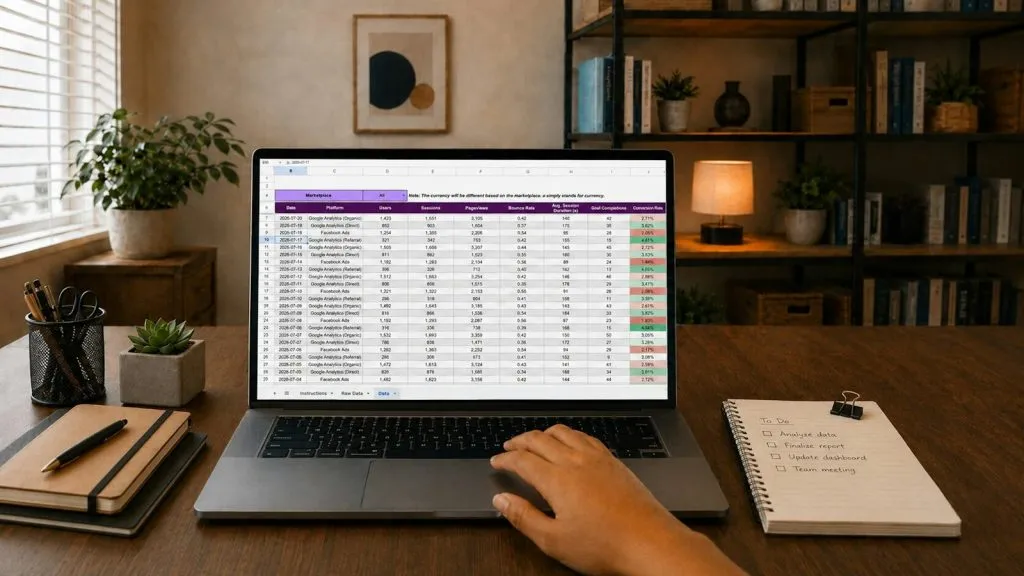
Excel’s Format as Table feature turns a plain range into a proper table with a header row, banded rows, and automatic filters. It also makes formulas easier, because tables use structured references that are more readable. More importantly, when you add a new row to a table, the table grows to include it, and formulas and formatting extend automatically. Practise converting one of your practice lists into a table and adding rows to it.
Creating Your First Chart
A chart turns numbers into a picture. Select a small set of data — for example, spending by category — and insert a column chart or a pie chart. Learn the basics: give the chart a clear title, label the axes, and choose a chart type that fits the data. Column charts suit comparisons between categories. Line charts suit changes over time. Pie charts suit parts of a whole, but only with a small number of categories. A simple, honest chart is better than a complicated one, and a chart that misleads is worse than no chart at all.
Conditional Formatting
Conditional formatting changes how cells look based on their values — for example, turning overspending red, or highlighting the largest value in a column. It is a quick way to make patterns visible without reading every number. Practise highlighting values above a threshold in your budget, and adding simple data bars to a column of numbers. Use it sparingly: formatting that highlights everything highlights nothing.
Printing and Sharing
Sooner or later someone will want your spreadsheet on paper or as a PDF. Learn to set a print area, choose landscape or portrait, fit the sheet to one page, and repeat the header row on each printed page. These are small settings, but they are the difference between a printout people can use and a stack of pages nobody can follow. Practise printing your budget to PDF and check that it looks right before you share it with anyone.
Building a Simple Dashboard
A dashboard is just a summary sheet that pulls the important numbers together: total spending, spending by category, a chart, and a few key figures. Try building one for your budget, using formulas that pull totals from your data sheet. It does not need to be fancy. The skill it teaches — separating your raw data from your summary — is one of the most important habits in Excel, and it is what makes a spreadsheet easy to maintain over time.
Stage 5: Putting It Together — A Four-Week Practice Plan
Here is the whole path as a week-by-week plan. Follow it at your own pace, but keep the order: each week builds on the last.
Week 1: Foundations
Days one to four cover entering data, selecting and copying, formatting, saving, and your first simple formula. By the end of the week you should be able to build a small, clean table and add up a column. Do not rush this week. Comfort with the basics makes everything after it faster.
Week 2: Formulas
Days five to ten cover SUM, AVERAGE, COUNT, MIN, MAX, IF, and your first lookup. By the end of the week you should have built a monthly budget that totals itself, flags overspending, and looks up a price from a list. If a formula confuses you, rebuild it slowly, one part at a time, and check each part in the formula bar.
Week 3: Data Skills
Days eleven to fifteen cover sorting, filtering, removing duplicates, cleaning text, and data validation. By the end of the week you should be able to take a messy list — duplicate entries, inconsistent spellings, unsorted dates — and turn it into a clean table you can work with. Practise on a larger list this week, because these skills only become real with enough rows to sort and filter.
Week 4: Presentation and a Final Project
Days sixteen to twenty-one cover tables, charts, conditional formatting, printing, and a simple dashboard. Your final project is to build one complete spreadsheet from scratch on a topic you care about: a budget tracker, a small business stock list, a study planner, or a job application tracker. It should have clean data, formulas that calculate the important numbers, a filter or a lookup, and one chart. When it is done, you will have proof of what you can do — and a project you can show to an employer or mention in an interview.
How to Keep Going After Four Weeks
Four weeks makes you a capable beginner, not an expert, and that is fine. After the plan, keep practising on real problems: every time you face a repetitive calculation at work or at home, ask whether a spreadsheet could do it. Learn one new function a week — useful next steps include COUNTIF, SUMIF, TEXT functions for cleaning names, and PivotTables for summarising large lists. Each new skill should be learned the same way: on real data, the same day, in a small project. That habit is how to learn excel for beginners beyond the first month.
Free Resources Worth Your Time
You do not need to pay to learn Excel well. The free resources below are the ones most consistently recommended by learners and teachers.
Microsoft’s Own Help and Training
Microsoft publishes free training, templates, and help pages for Excel, including step-by-step guides for each feature. The official support site at https://support.microsoft.com/en-us/excel is the most reliable place to check how a feature works in your version, because it is written by the people who make the product. Start here whenever a feature behaves differently from what a tutorial promised, because versions change and third-party tutorials go out of date.
Free Video Courses
Free video courses on major learning platforms cover the full beginner path, often in a few hours. Choose a course that is recent, that teaches by building real spreadsheets rather than just listing features, and that has practice files you can download. Watch actively: pause the video, try each step yourself, and do not move on until you can repeat it without watching. Passive watching feels like learning and is not.
Practice Datasets
Once you are comfortable, practise on larger datasets. Public datasets from government statistics sites, open data portals, and sample business data give you realistic lists with thousands of rows — the kind of data where sorting, filtering, and PivotTables become necessary rather than optional. Working with a large dataset teaches you things a small practice file never will, including how to check your work when you cannot read every row by eye.
Templates You Can Learn From
Microsoft and other sites offer free Excel templates for budgets, schedules, invoices, and trackers. Download one, take it apart, and see how it is built: which formulas it uses, how it is laid out, how it handles its data. Templates are useful as learning material and as starting points, but do not rely on a template you do not understand — if it breaks, you need to know how to fix it.
Common Mistakes Beginners Make
Watching Videos Without Practising
This is the single biggest reason beginners stall. Watching someone else use Excel feels productive, but the skill lives in your hands, not your eyes. For every ten minutes of video, spend at least twenty minutes practising. If you cannot repeat a step without the video, you have not learned it yet — rewind and try again.
Memorising Formulas Instead of Understanding Them
A formula you memorised will fail you the first time the situation changes slightly. A formula you understand will adapt. When you learn a new function, break it into its parts, change one part at a time, and watch what happens. Ask what each argument does and what happens if you leave it out. That slow understanding pays off far more than fast memorisation.
Hardcoding Numbers Inside Formulas
Beginners often type numbers directly into formulas, such as =B2*0.2 for a tax rate of twenty per cent. The problem is that when the rate changes, you must find and edit every formula that used it. The better habit is to put the rate in its own cell and refer to that cell, so that changing the rate in one place updates everything. This small discipline is one of the marks of a good spreadsheet builder.
Building One Giant Sheet Instead of Separating Data and Results
A common beginner pattern is to put everything — raw data, calculations, and summary — on a single crowded sheet. It works for a while, then becomes impossible to maintain. The better structure is to keep your raw data on one sheet, your calculations on another, and your summary or dashboard on a third. It takes a little more setup and saves a lot of confusion later.
Not Checking Your Work
Excel does exactly what you tell it, including when what you tell it is wrong. Check your totals by adding a few numbers by hand or by eye. Check that a lookup returned the right row. Check that a sort did not scramble your data. A quick check after each step catches mistakes while they are still easy to fix, and it is a habit employers value.
Learning Advanced Features Too Early
PivotTables, macros, and complex nested formulas are powerful, and beginners are often tempted to jump to them. Resist the urge. The basics in this guide handle most real work, and advanced features make sense only once the basics are fluent. Learn them later, one at a time, when a real problem needs them.
How to Learn Excel for Beginners Checklist
Setup:
- Get access to Excel, including the free web version if needed
- Spend ten minutes learning the layout: grid, ribbon, formula bar, sheet tabs
- Choose a regular thirty-minute daily study time and protect it
- Pick real practice data you care about, such as a budget or a list
Stage 1 — basics:
- Enter data, select ranges, copy and paste, insert and delete rows
- Format cells: bold headings, currency, percentage, and date formats
- Write your first formula with an equals sign and add two cells together
Stage 2 — formulas:
- Use SUM, AVERAGE, COUNT, MIN, and MAX on your own data
- Use IF to flag a value, such as spending over a limit
- Use XLOOKUP or VLOOKUP to find a value in a small table
- Build a monthly budget that totals itself
Stage 3 — data skills:
- Sort a table by one column and then by two columns, keeping rows together
- Filter a list to answer a question about your data
- Remove duplicates from a copy of a list
- Add a drop-down list with data validation
Stage 4 — presenting results:
- Convert a range into a formatted table
- Create a column chart and a line chart from your own data
- Use conditional formatting to highlight values above a threshold
- Build a simple summary sheet with totals and one chart
Keep going:
- Complete one final project spreadsheet from scratch
- Learn one new function a week, starting with COUNTIF and SUMIF
- Practise on a larger public dataset when you are ready
- Check the official Microsoft support pages when a feature behaves unexpectedly
Conclusion
Learning how to learn Excel for beginners comes down to three things: learning in the right order, practising on real data every day, and building complete spreadsheets rather than memorising features. Start with the basics, then the six essential formulas, then sorting and filtering, then charts and presentation. Follow the four-week plan, spend thirty minutes a day, and build a budget and a final project you can show to someone. At the end of that month you will not know everything about Excel, and you will not need to — you will know enough to handle the spreadsheets most jobs actually ask for, and you will know how to learn the next skill when a real problem needs it.
Keep the habit going after the four weeks. Every repetitive calculation at work or at home is a chance to practise, and every new function you learn makes the next one easier. If you want a sense of the timeline, see our guide on how long does it take to learn excel, and if your study habit needs structure, see our guide on how to study effectively. The best time to start was when you first needed a spreadsheet. The second-best time is today: open a blank workbook, enter some real numbers, and write your first formula.
FAQ
How long does it take to learn Excel for beginners?
Most beginners reach a useful working level in about four weeks of steady practice at thirty minutes a day, following the plan in this guide. That is enough to build clean tables, use the essential formulas, sort and filter data, and make simple charts. Reaching an intermediate level, including PivotTables and more advanced functions, usually takes a few more months of regular use. The exact time depends on how much you practise on real data and how often you use Excel at work or at home.
Is Excel hard to learn for beginners?
Excel is not hard at the beginner level. The basics — entering data, formatting, and simple formulas — can be learned in a few days. What feels hard is the size of the program: there are hundreds of features, and beginners often do not know which ones matter. This guide solves that problem by focusing on the small set of skills that cover most everyday work. Learn those first, and the rest becomes much easier to pick up later.
Can I learn Excel for free?
Yes. The free web version of Excel covers everything a beginner needs, and there are free video courses, free templates, and free practice datasets from reliable sources. Microsoft’s own support and training pages are free and are the most reliable reference for how features work. You do not need to buy a course or a book to reach a capable beginner level, though a good book or course can help if you prefer structured learning.
What is the first formula I should learn in Excel?
Start with SUM, because it is the simplest and the most used: =SUM(B2:B10) adds a column of numbers. Then learn AVERAGE, COUNT, MIN, and MAX, which work the same way. After those, learn IF, because it lets a formula make decisions, and then a lookup function such as XLOOKUP, because it lets you find information in a table. Those six functions cover most everyday spreadsheet work, and everything else builds on them.
Do I need to learn Excel or Google Sheets?
Learn Excel if you have access to it, because it is the standard most employers ask for by name in job adverts. Google Sheets is a good free alternative, and most of what you learn transfers directly, because the ideas and many of the formula names are the same. If you learn in Sheets first and move to Excel later, your learning will not be wasted. The important thing is to learn the concepts — cells, formulas, sorting, charts — rather than the buttons of one particular program.